On-site collection
Set up a session and collect attendance signatures
Attendance tracking brings together a training course, its participants and its sessions. Tablet signature collection uses a separate interface from the organiser workspace.
Updated on
Before you start
- Open attendance tracking for the form from your workspace.
- Have the form's operator PIN ready for the collection tablet.
Steps
Create the training course
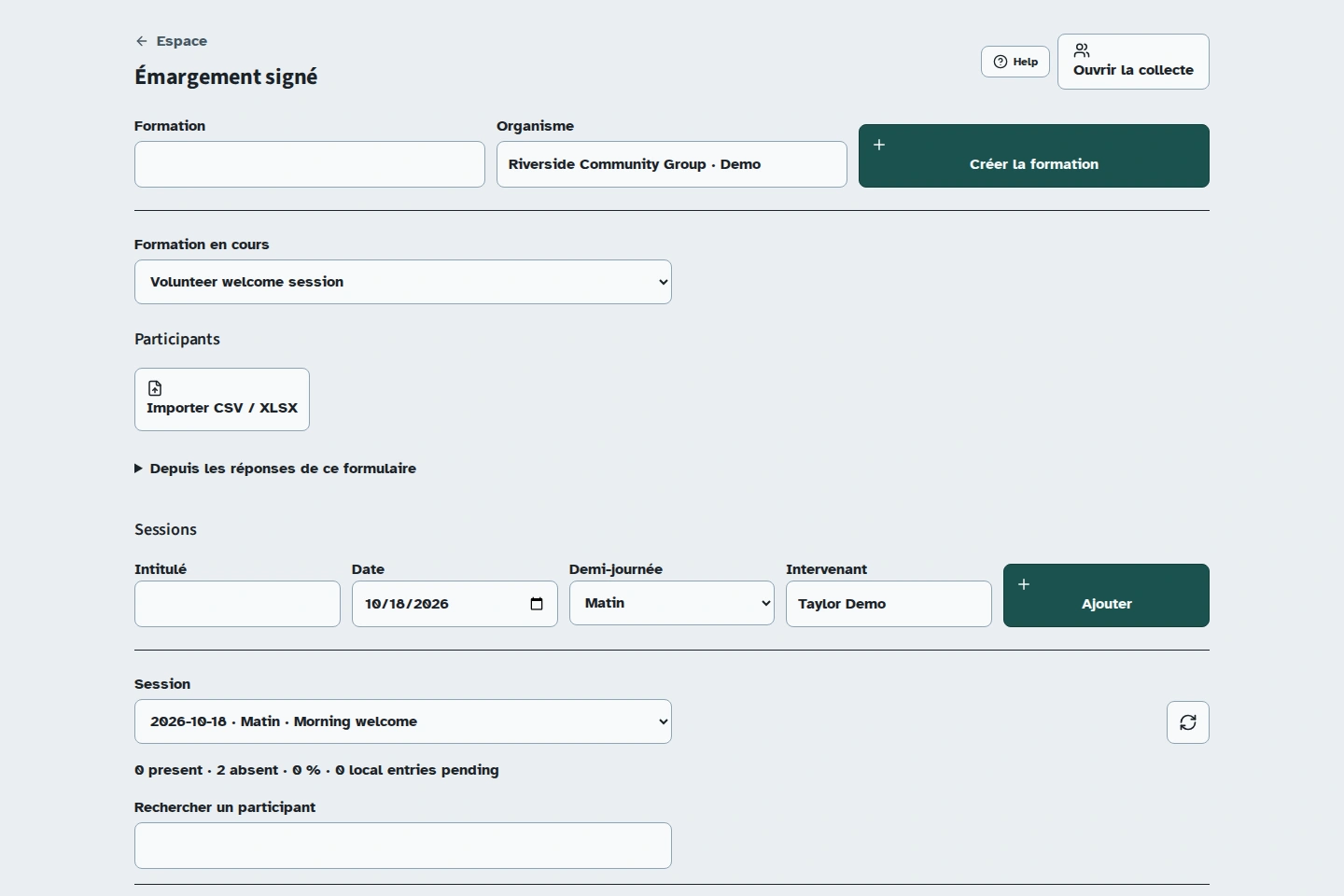
Fill in “Formation” (Training course) and “Organisme” (Organisation), then use “Créer la formation” (Create the training course). The Participants and Sessions sections become available.
Import participants
Import a CSV or XLSX file in Participants. Check names and groups before continuing. Correct the file or column mapping if a name is missing.
Add a session
Enter the session title, date, half-day and instructor, then click “Ajouter” (Add). Select the session from the list.
Open signature collection
On the tablet prepared online, click “Ouvrir la collecte” (Open collection). Enter the operator PIN and use “Préparer et verrouiller” (Prepare and lock). Collection replaces the organiser session on this device.
Collect and check signatures
Select the participant, ask them to draw their signature and confirm. The attendance count updates. Once the connection returns, sync and check the received attendance records in your organiser workspace.
Export the attendance sheet
In attendance management, choose the session and the PDF export. Check the date, half-day, participants and signatures before sharing the sheet.
What the record contains
The sheet records the signature, the time it was entered and the time it was received. This is a simple electronic signature, not a qualified electronic signature under eIDAS. For funded training, ask the funding body what evidence of attendance it requires.
Troubleshooting
A signature is still pending on the tablet
Reconnect the tablet and check the relevant session. Do not clear its storage until the attendance record appears in the organiser workspace.