
Responses and follow-up
View responses and export your results
The responses page brings together the summary and individual responses. The count reflects what the server has actually received.
Updated on
Before you start
- At least one response must have been submitted to the form.
Steps
Open responses
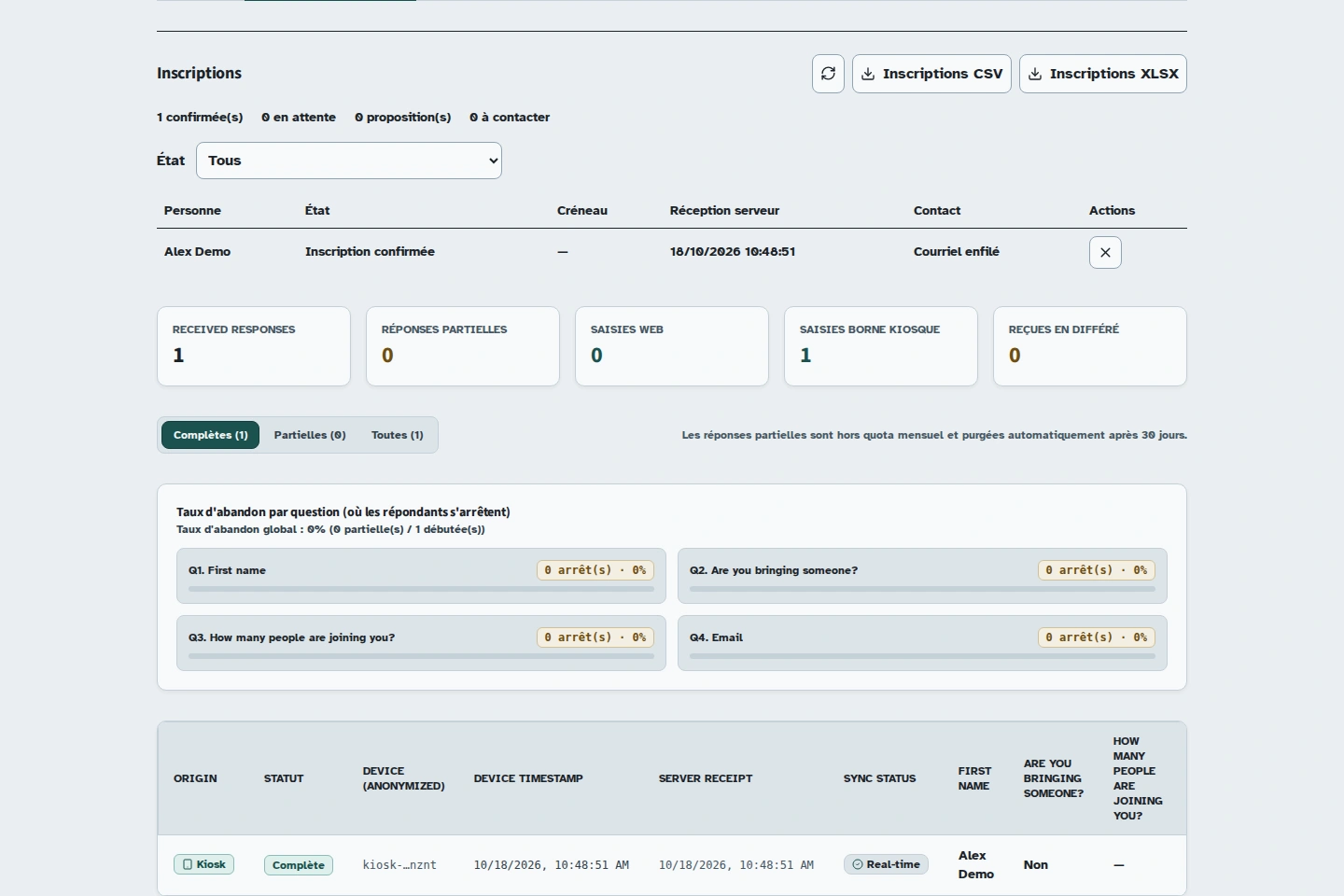
From the form list or builder, open the form's responses. The total count and viewing tabs appear.
View the summary
Open Summary to see the response breakdown for each question. The questions and filters available depend on the form's content.
Read individual responses
Choose Individual responses. Check the date, web or kiosk origin and the values received. If you use partial responses, choose the appropriate filter before interpreting the number of completed responses.
Export
Click Export CSV, Export XLSX or Export JSON. The browser downloads the file. Open it and check a known row before sharing it with your team.
Which format should I choose?
Exports remain separate copies. Deleting data in Kiosform does not delete a file you have already downloaded or shared.
- CSV: a data table to open or import into a spreadsheet.
- XLSX: a workbook to open in Excel or LibreOffice.
- JSON: structured data for technical use.
Troubleshooting
A kiosk response is missing
First check its sync status on the device. A pending entry is not yet included in the received-response count.