
An attendance sheet, signed on a tablet.
Have the participant list ready on the tablet when training begins. Each person finds their name and signs with a finger. At the end of the session, export your attendance sheet as a PDF.
Start with Discovery at €0. No card required.
- Hosted in the EU
- Built-in GDPR tools
- Offline Android kiosk
- No advertising trackers
In the app
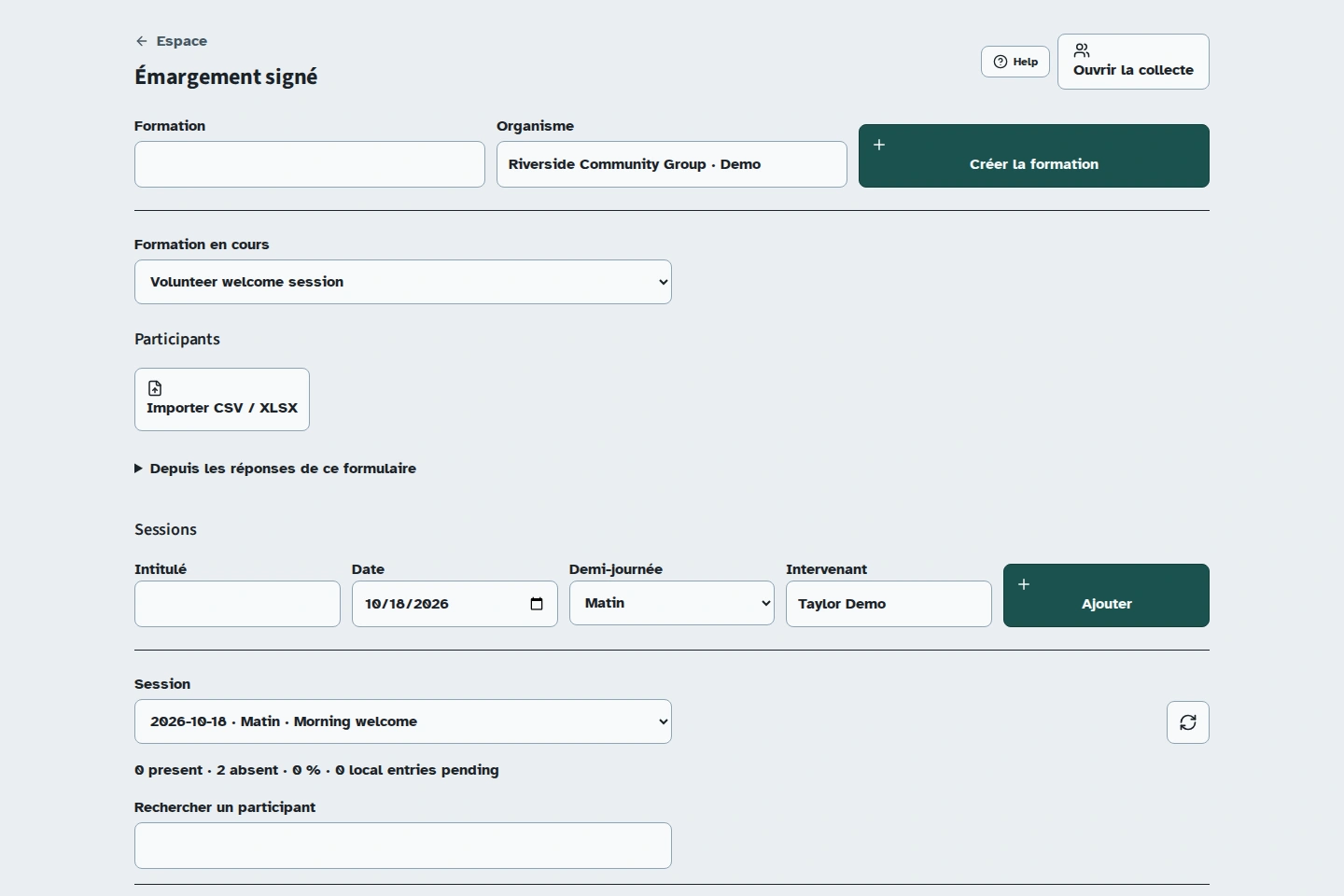
Prepare the participant list and the session.
The attendance view brings together the participants and the session to prepare. Once setup is complete, you can open collection on the tablet.
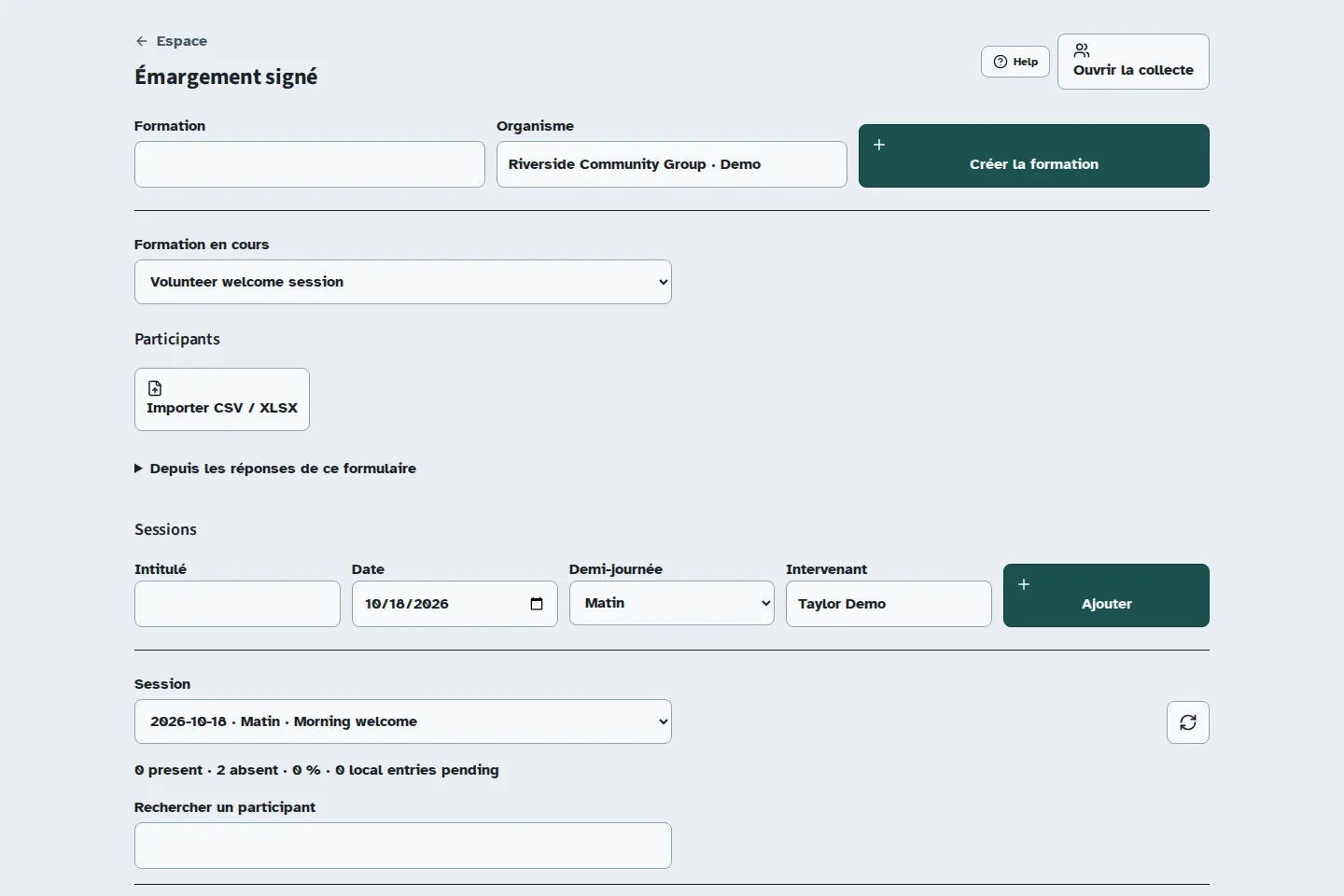
At training reception
Have the list ready before the group arrives.
Open the day's session on the tablet and place it at reception. Participants find their names in the list, sign, and confirm their signature before joining the group.
During reception, the counter helps you follow arrivals. Check which attendance records have been received and who is still expected.
- Training course
- Welcoming volunteers, organised by the fictional Atelier du Parc association.
- Session
- The date, session title, and instructor in one session record.
- Expected participants
- Léa Martin and Karim Exemple, demonstration participants imported before reception opens.
- When signing
- Each person checks their name, signs with a finger, and confirms. The attendance counter updates after receipt.
Prepare attendance in three steps.
Prepare the session
Create your training course and its sessions. Import participants from a CSV or XLSX file so the list is ready at reception.
Collect signatures
Prepare and pair the tablet online. Each participant finds their name, signs with a finger, and confirms. The list returns for the next person.
Check and export
Review received attendance records in your workspace. After synchronisation, download the session's attendance PDF to file or share.
Prepare the participant list for your sessions.
Start with your participant file. Import it as CSV or XLSX, then check the names in Kiosform. Sessions bring together the information needed to organise the training course.
On the day, the person at reception opens the correct session. Each participant follows the same signing flow.
Find the PDF in your workspace.
Once the tablet has synchronised, check the received attendance records and download the session PDF. You can file it with your training documents.
Before your first session.
Can I prepare several sessions for one training course?
Yes. Add the dates, titles, and instructors for your sessions. Import participants as CSV or XLSX, then open the relevant session on the tablet on the day.
What kind of signature does Kiosform collect?
It collects a simple electronic signature for attendance sheets, not a qualified electronic signature under eIDAS. Check which attendance evidence your funder or certifying body requires.
What happens if the connection drops?
On a tablet prepared online and paired, signatures stay on the device while the connection is down. When it returns, synchronise the tablet and check received attendance records in your workspace before exporting.
Where can I find the session documents?
Open the session in your organiser workspace to view attendance records and download its PDF. CSV and XLSX exports also let you use the data in your usual tools.
Set up your form in Kiosform.
Choose your questions, check the preview and publish when your form is ready.
Create my formView plansOn the ground
Get ready for your next gathering.
Offline tablet forms
Set up your kiosk, collect responses, and check that they arrive when the connection returns.
Community registrations
Plan a gathering, recruit volunteers, and ask for the information you need.
Event registrations
Organise time slots, track available places, and manage cancellations.
Membership applications
Collect requests to join your community group and follow up with your team.
Tablet feedback surveys
Collect visitor feedback while the experience is still fresh.