Tablet forms, even without a connection.
Wi-Fi may be unreliable at a reception desk or event stand. With Kiosform, set up your Android kiosk online, then collect responses on the device while the connection is down.
Start with Discovery at €0. No card required.
- Hosted in the EU
- Built-in GDPR tools
- Offline Android kiosk
- No advertising trackers
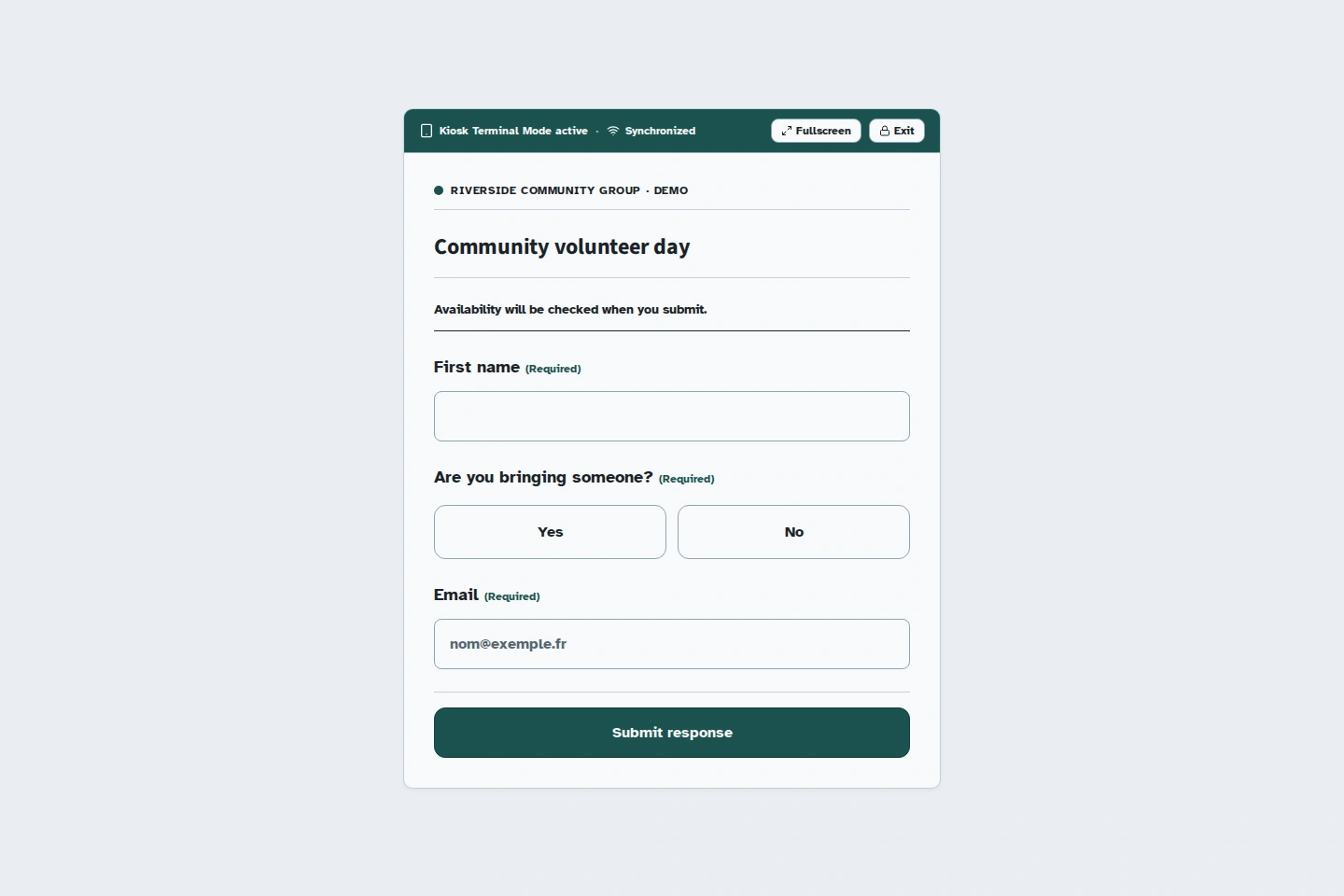
In the app
Match the kiosk to your brand.
Use a light theme, a dark theme, or your organisation's colours for the same form. A prepared kiosk can keep responses on the device during a connection loss. Check that they arrive in your workspace after reconnection.
Keep the welcome desk open
A tablet for visitors at your stand.
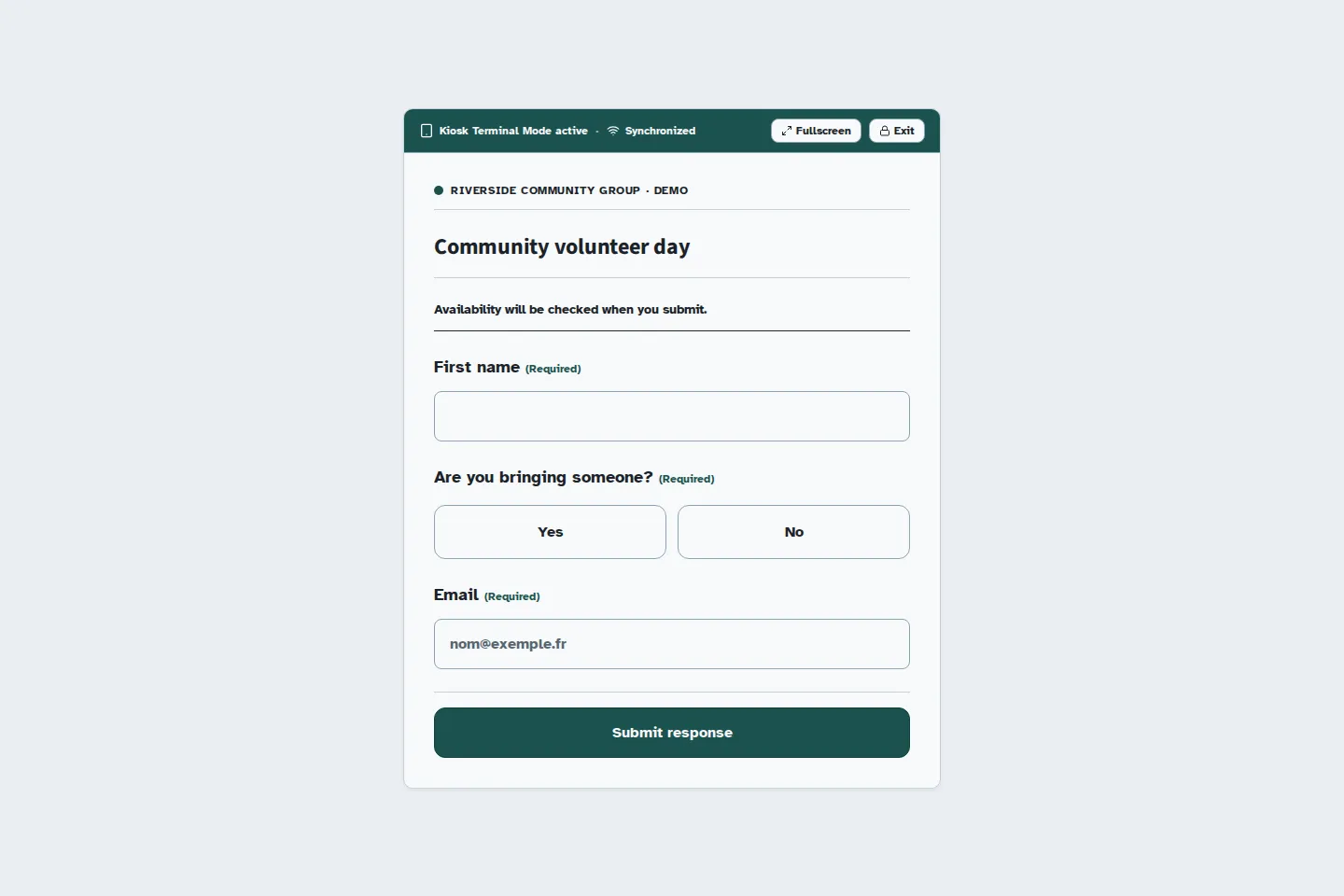
You are welcoming people to a community gathering. The tablet offers a contact form: visitors choose how they would like to hear from you, then leave the screen ready for the next person.
If the connection drops, responses wait on the prepared kiosk. When it returns, check their synchronisation in your workspace.
Fictional setup example. This page does not create a form or a contact.
- What you prepare
- A published contact form asking only for the information needed for the follow-up the person has requested.
- What stays on the tablet
- The downloaded form and any responses the server has not yet accepted.
- What you check afterwards
- The number of pending responses and their receipt in your workspace, before resetting the tablet.
Set up online before you leave.
Create and publish
Choose the questions and display conditions. Test the flow in the preview, then publish the version participants should complete.
Pair the kiosk
Connect the tablet to pair it and download the form. Prepare the operator code and check the device before opening reception.
Test a connection loss
Use test data: disconnect, complete the form, reconnect, and check receipt. A pending response has not yet been received by the server.
What to watch during collection.
- Keep the tablet charged and protected with a system screen lock.
- Watch the pending-response queue, then reconnect the device and check submission.
- Do not uninstall the app or clear its storage while responses are waiting to be sent.
- Check your workspace quota. A response rejected by the server needs attention even if it remains on the device.
The server still allocates limited places.
An offline kiosk cannot guarantee a place at an event or in a time slot. Availability may change while it is disconnected. For capacity-limited registration, wait for server validation before confirming a place.
Prepare event places and time slots
The Kiosform exit code protects the flow within the app. It does not replace the tablet's screen lock or system settings that restrict access to other apps.
Before your first collection.
Will the first launch work without internet access?
No. Creating, publishing, pairing, and downloading the form for the first time require a connection. Set up the device online before placing it at reception.
When do responses arrive in my workspace?
The kiosk attempts to send them when the connection returns. Check the queue and server receipt before putting the device away or resetting it. A connection loss, a reached quota, or an unpublished form can delay or prevent acceptance.
Is a shared link an offline kiosk?
No. A visitor opening a link or QR code on their phone for the first time needs a connection. Offline collection requires a kiosk that has already been prepared and paired.
Can the next visitor see previous responses?
Kiosk mode is designed for successive participants. During your test, check that it returns to the starting screen and protect operator access. Avoid leaving personal information visible on an unattended tablet.
Set up your form in Kiosform.
Choose your questions, check the preview and publish when your form is ready.
Create my formView plansOn the ground
Get ready for your next gathering.
Community registrations
Plan a gathering, recruit volunteers, and ask for the information you need.
Event registrations
Organise time slots, track available places, and manage cancellations.
Attendance and signatures
Prepare a session's participant list, collect signatures, and review attendance.
Membership applications
Collect requests to join your community group and follow up with your team.
Tablet feedback surveys
Collect visitor feedback while the experience is still fresh.