
On-site collection
Set up and pair an Android kiosk
The Android kiosk downloads forms and keeps responses on the device when there is no connection.
Updated on
Before you start
- Install the kiosk version supplied to your organisation.
- Keep the tablet connected while pairing it and downloading forms.
Steps
Set the operator PIN
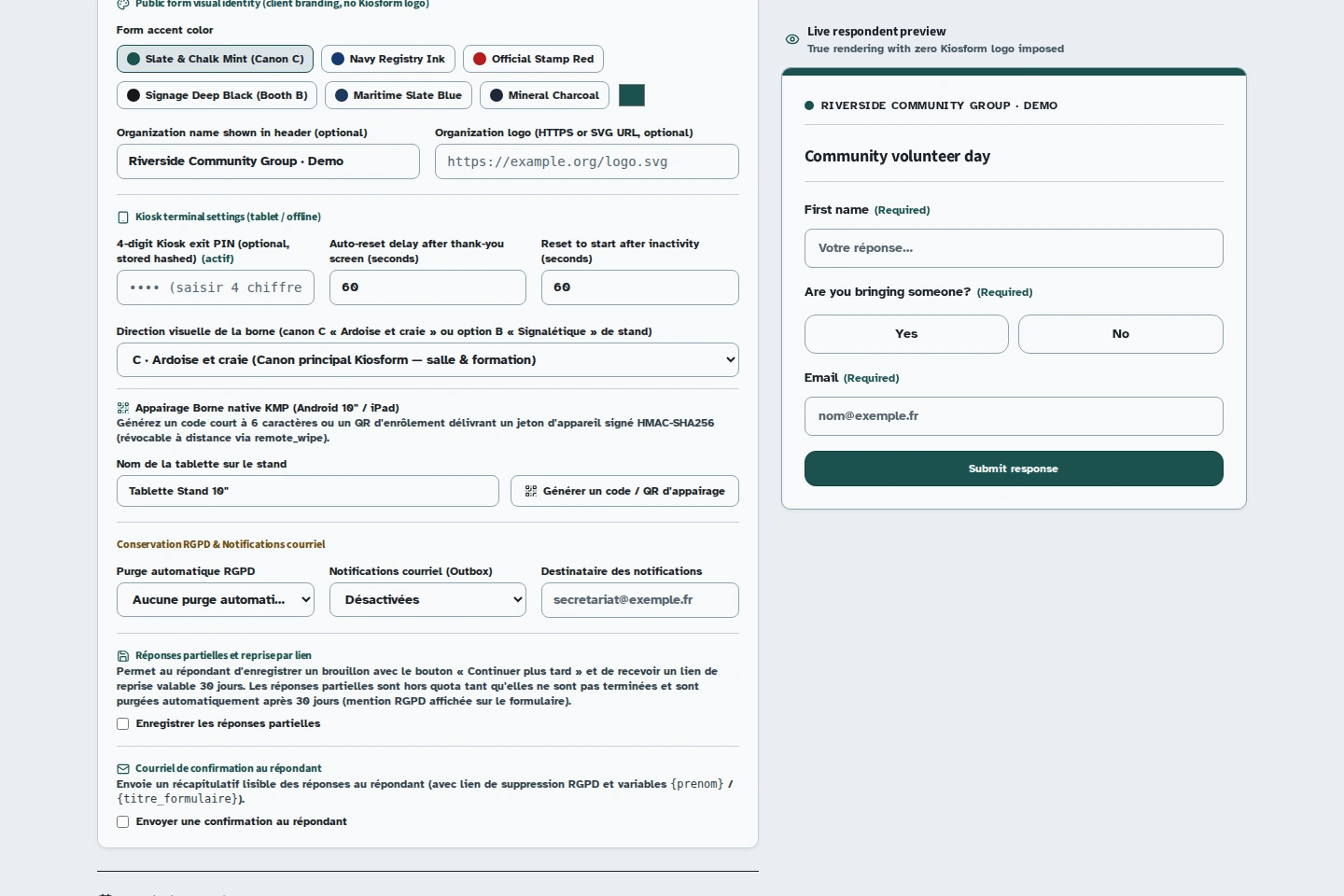
In the form's kiosk settings, enter the four-digit exit PIN and publish the form. This PIN will be used to prepare the tablet's offline exit control.
Create a pairing code
On the same screen, fill in “Nom de la tablette sur le stand” (Tablet name at the stand), then click “Générer un code / QR d'appairage” (Generate a pairing code / QR code). A six-character short code appears.
Pair the tablet
In the Android kiosk, enter the code in “Code court d'appairage (6 caractères)” (Short pairing code, 6 characters), then choose “Appairer la tablette” (Pair the tablet). Enter the form's operator PIN when prompted. The tablet loads the available forms.
Prepare the form
Select the form to display. Submit a test response, then disconnect the network and submit another. The banner should show the pending response. A place or waitlist position is only confirmed once the server receives the response.
Sync and finish
Restore the connection and start syncing if needed. Check for “0 en attente” (0 pending) and confirm that the responses appear in the organiser workspace. To exit, use “Quitter (PIN)” (Exit with PIN) and enter the operator PIN.
Revoke a tablet's access
On the form's responses page, find the tablet in the device list and use “Révoquer” (Revoke). The next time the kiosk contacts the server, it applies the revocation and erases the affected local data.
Sync and check the responses before revoking a tablet you are taking back. A response that exists only on the device has not been received.
Troubleshooting
The pairing code is rejected
Generate a new code from the correct form and try again with the tablet connected. The six-character pairing code and four-digit operator PIN serve different purposes.