On-site collection
Open kiosk mode in a browser
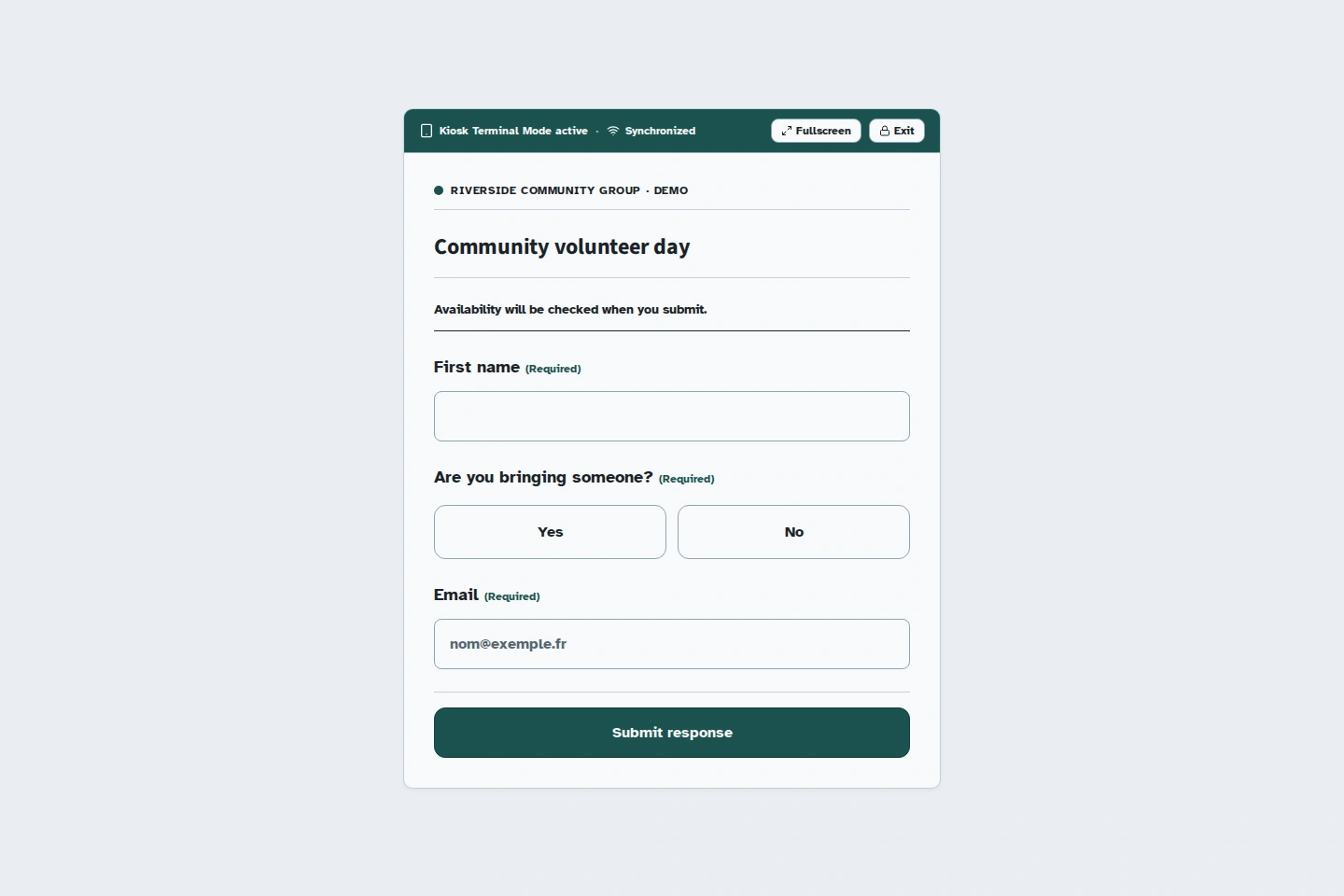
Kiosk mode makes the form ready for the next person after each response. Open it from the published form's link.
Updated on
Before you start
- Set up the device online and publish the form.
Steps
Set the reset delays
In the builder, open the kiosk settings. Choose the reset delay after the thank-you screen and the inactivity timeout. Set a four-digit exit PIN, then save and publish.
Open the shared form
Click Open in kiosk mode. Check the kiosk banner and the form title. You can use Fullscreen if the browser offers it.
Run a complete test
Submit a test response. After the thank-you screen, wait for a blank form or use Start a new entry. The previous person's name and answers should no longer be visible.
Check submissions
Monitor the sync status and the number of pending responses. In your organiser workspace, open the form's responses and check that your test response was received.
Exit kiosk mode
Use the lock or exit control, then enter the four-digit PIN. You return to the form outside kiosk mode.
Collecting responses without a connection
Loading the web form for the first time requires an internet connection. The browser can keep responses pending; they are only received after syncing. For a tablet dedicated to on-site collection, prepare the Android kiosk instead and test a network outage before participants arrive.
Browser kiosk mode does not lock down the device's operating system. Do not leave an admin session accessible to participants.
Troubleshooting
Responses are still pending
Restore the connection and check the status. Do not clear browser data or uninstall the app until you have checked that the responses were received. Reaching a quota, unpublishing the form or revoking access can prevent delivery.