
Account and integrations
Manage your plan and billing
Your plan applies to the selected workspace. Current amounts are shown on the pricing page and at checkout.
Updated on
Before you start
- Sign in as an owner or administrator of the relevant workspace.
Steps
Check the workspace and plan
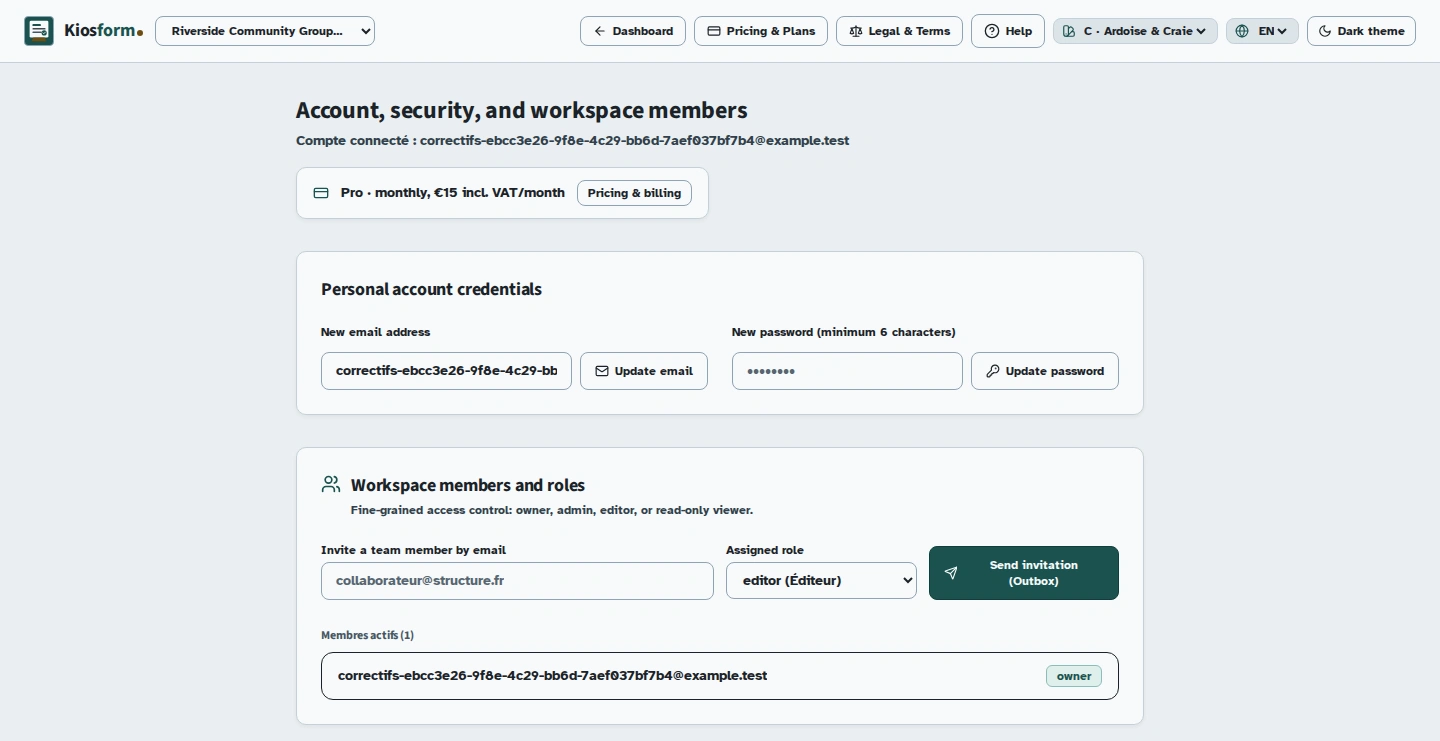
Open Account & Members and check the selected workspace. The summary shows the active plan and, for a subscription, its billing period and renewal date.
Upgrade to Pro
Open Pricing & Plans, choose an available billing period, then select the option to upgrade to Pro. You are taken to checkout. Review the plan and amount before confirming.
Switch from monthly to annual billing
For a monthly subscription, open the annual-billing offer under Pricing & Plans. The preview shows the immediate amount, calculated pro rata. Only confirm after reviewing this preview.
Find invoices or cancel
Use Manage in Stripe portal. In the workspace's portal, find your invoices and subscription management options. Check the effective date before confirming a cancellation.
Plan a return to monthly billing
For an annual subscription, use the billing portal and check the options offered for renewal. Then return to Kiosform to check the subscription summary and date.
Check current prices
This guide explains the management options; it is not a quote. Check pricing before subscribing or making changes. The confirmation page shows what you are about to pay.
Troubleshooting
My plan has not updated after payment
Check that you have selected the correct workspace, then refresh its status. If the mismatch persists, email support with the payment date and reference. Do not send a card number.