
Getting started
Show a question based on an answer
For example, ask how many guests someone is bringing only when they answer Yes to Are you bringing anyone with you?
Updated on
Before you start
- Open the form builder.
- Place the question that triggers the condition before the question that depends on it.
Steps
Add the first question
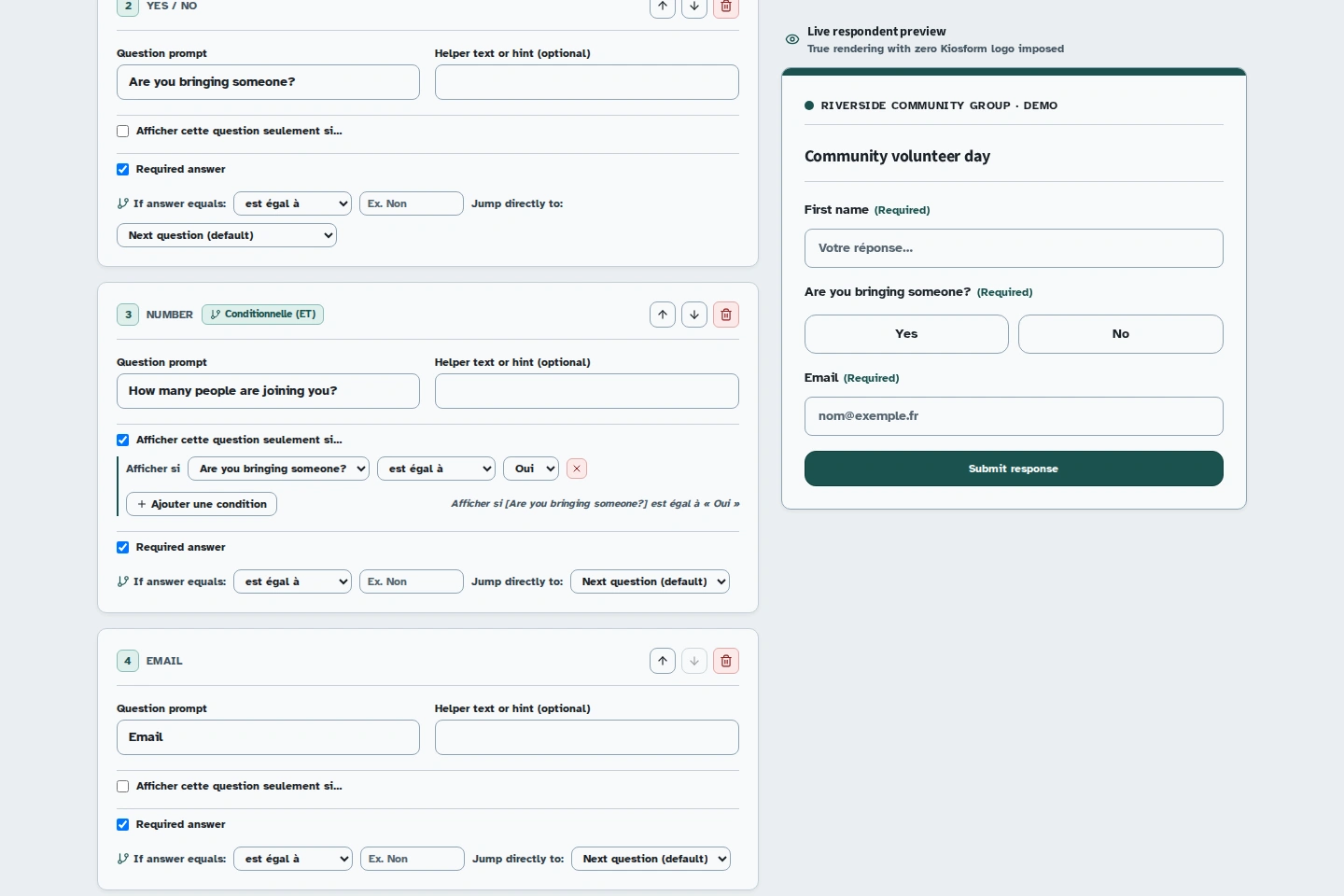
Add a Yes / No question and name it Are you bringing anyone with you? This will trigger the condition.
Add the dependent question
Add a Number field, for example How many people are you bringing? For this question, turn on “Afficher cette question seulement si…” (Show this question only if…). The condition settings appear.
Set the condition
Choose Are you bringing anyone with you?, the operator “est égal à” (equals), then “Oui” (Yes). The condition selector still shows this value in French. Review the “Afficher si […]” (Show if […]) summary below the settings.
Check both answers
In the preview, answer No: the number question should be hidden. Answer Yes: it should appear. If you make the question required, also check the path where it stays hidden.
Publish the checked form
Click Publish, then repeat both checks using the public link.
Display condition or skip logic?
A display condition hides a question or section. A skip sends the participant to another question or to the end of the form. Start with a display condition for this example. Add a skip only if you want to bypass part of the form.
Troubleshooting
A condition is marked as broken
A question used by a rule may have been deleted. Correct the reference or remove the condition indicated, then test the paths again.